

Lost text messages or your contacts list could be a disaster for some people. No one will deny the importance of the SMS and Contacts on your mobile phones. So once the disaster have happened, you'd better to look for a way to reduce your losses. Thus, Coolmuster Android SMS Recovery could be an ideal program for your reference.Â
how to recover deleted messages on androidÂ
And you need to root your android phone at first, or the app can't detect your phone successfully. And stop saving new data to your phone, or the deleted data will be covered.Â
Step1: Connect android phone to pc and start the problem on computerÂ
At first, connect your phone to computer via USB cable, then start the app on your computer. Make sure your phone has been linked to computer correctly, or this data recovery problem couldn't detect it successfully.
Step2: Enable USB Debugging on your phoneÂ
Notice: If this is the first time you connect your phone to computer, you need to enable USB debugging on your device, then the data on your android phone will be synced to computer. And the problem will scan your device directly. And you just need to enable USB debugging for once.
Step3: Preview and Recover MessagesÂ
After the scan, you can preview all of your messages and contacts on an interface. And this problem could help you distinguish deleted messages with existing messages. Then you just need to select and check those you need to recover, and click "Recover" to save lost messages on your computer.

That's all! You can also use Coolmuster Android Data Recovery to recover other kinds of deleted data, like photos, videos, music, etc.
Â
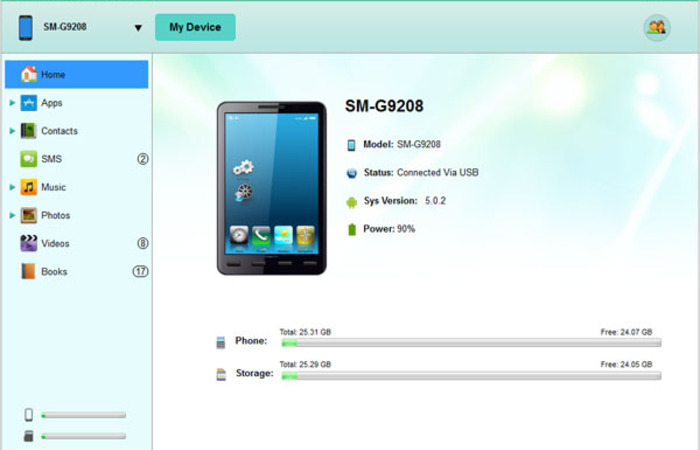
To keep our data in phone safer, you can use Coolmuster Android Assistant to backup them to computer easily, it could help you backup almost everything on your phone to computer. If you've made a backup before, you can recover your lost files from backup files.
Â
It's also very easy to use:
Step 1:Connect Android Phone to PC via the USB cable
Â
If this is the first time you connect your android phone to computer, you shoule enable the USB debugging. You can follow the guide to open the USB begging. And it's only necessary at the first time.
Â
Step 2:Preview contacts and Start Export
Â
That's all! And A wide range of Android brands are supported by this Android managing tool, including HTC, Samsung, Motorola, Sony, ZTE, LG, HUAWEI, Dell and many more. Have a try!





Comments (0)
No comments yet. Be the first to comment.